WHAT THE FILE IS FOR
From download to blade.
The SVG that leaves this page is sized and layered for real cutting — vinyl, HTV, stickers, layered cardstock.
ONE LAYERED DESIGN
One credit per artwork
The pack includes one SVG per layer plus the combined file with registration marks, so you can cut any layer independently.
WHAT THE OUTPUT LOOKS LIKE
Halloween pumpkin
Four colour layers with corner registration marks and the cut order printed on the pack.
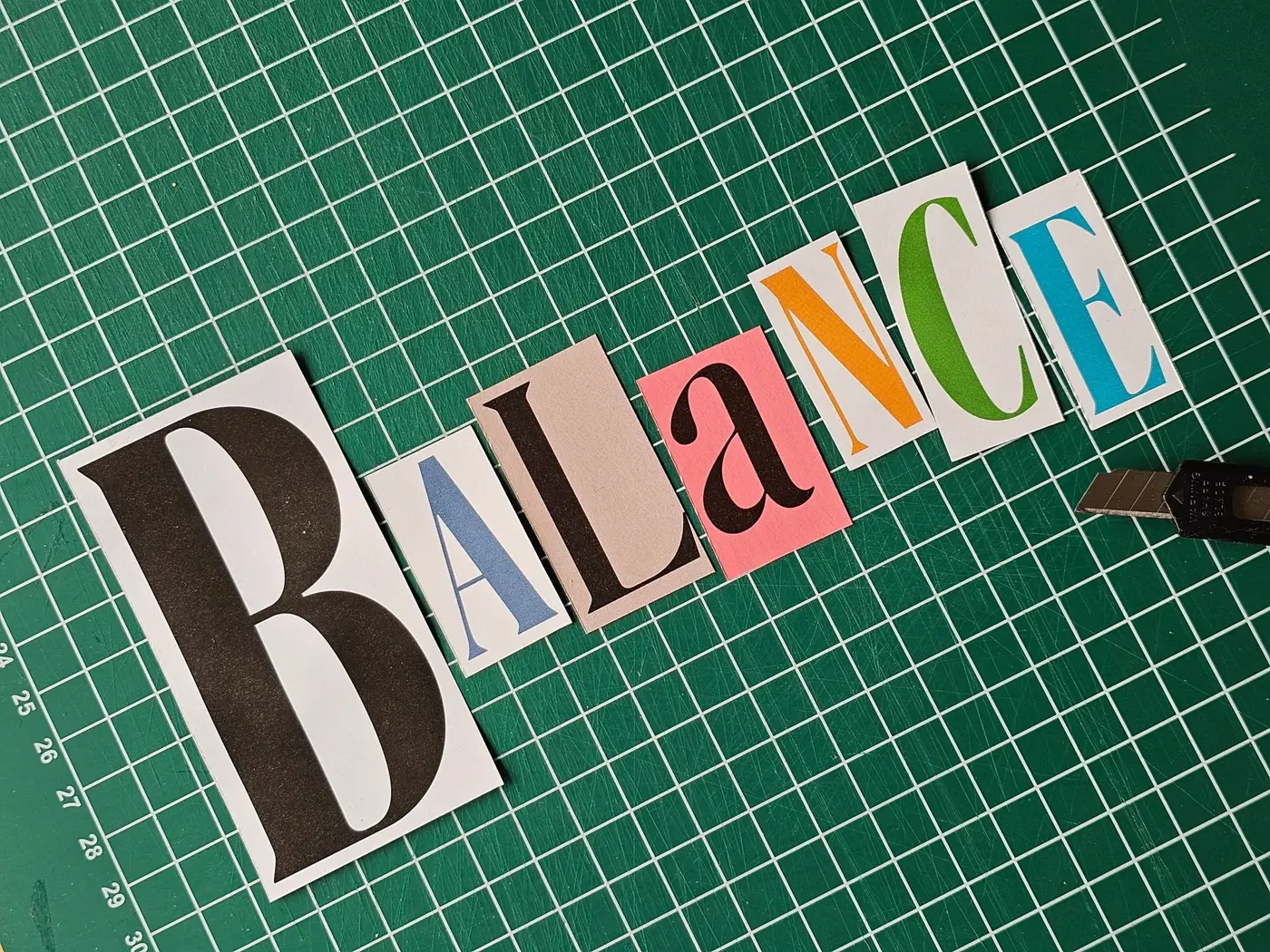
Real-world reference
The kind of physical piece this template is built for.
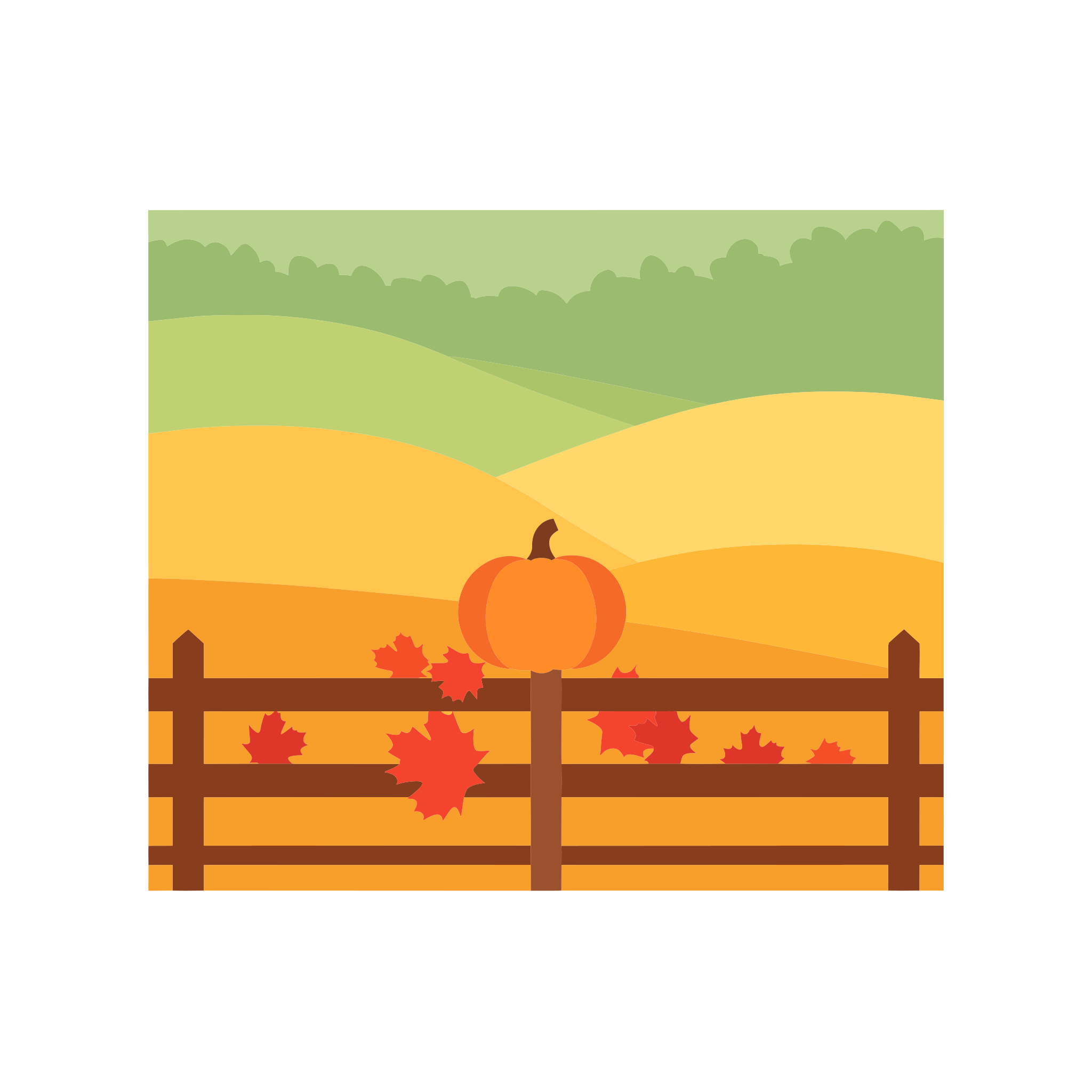
Vector output — Halloween pumpkin
Generated example · 16 flat colours · 42 paths · registration marks
File details and what to expect
SVG · 4 layers · 61 paths · order sheet included
ANOTHER SCENE TO EXPLORE
One photo or two. Find your format.
THE OFFER, WITHOUT GUESSWORK
Product facts at a glance
| Layers | 3–6 |
|---|---|
| Marks | 4 corners |
| Order | Back to front |
| Formats | SVG, DXF, PDF |
| Canvas | 12 × 12 in |
Reviewed by the AISVG Pro editorial team · Updated 2026-10-23 · Stroke widths are starting points, not a guarantee for every blade and material. How we check files.
KEEPING COLOURS APART
Fewer colours read better.
Every added layer multiplies alignment risk. Four to five colours is the practical ceiling for home cutting; six works but needs a steady hand on the mat.
Choose
- A subject with clear colour regions
- Three to five colours for a first attempt
- High contrast between adjacent layers
Avoid
- Photographic gradients and skin tones
- Two near-identical shades side by side
- Thin outlines between large fills
Colour clustering merges shades that are closer than the tolerance setting. Lower the tolerance if you need more separation.
FROM PROMPT TO STACK
What happens after you press generate
- 01
Generate
The artwork is produced as vector shapes with flat fills.
- 02
Cluster
Similar colours are merged into a palette you can tune.
- 03
Separate
One layer per colour, with registration marks added at the corners.
- 04
Download
One credit unlocks every layer plus the combined file and order sheet.
Cut the registration-mark layer first — it sets the alignment for every layer after it.
Why do I need registration marks?
Can I change a layer colour in Design Space?
What is the difference between this and the mandala template?
USEFUL ANSWERS
Before you cut
CUT-READINESS
How to tell if an SVG is actually cut-ready
Six checks that separate a file you can cut from a preview that only looks finished.
LAYERED FILES
Layered SVG files: order, registration and drift
Why the third layer never lines up, and how registration marks and cut order prevent it.